Test instructions
With the test fields in the instructor, you can create test instructions in no time at all and thus secure your processes in the long term


- Picture documentation
- Test fields
- Selection fields
- Image selection
- Time recording
- Countdown
- Test report
Picture documentation
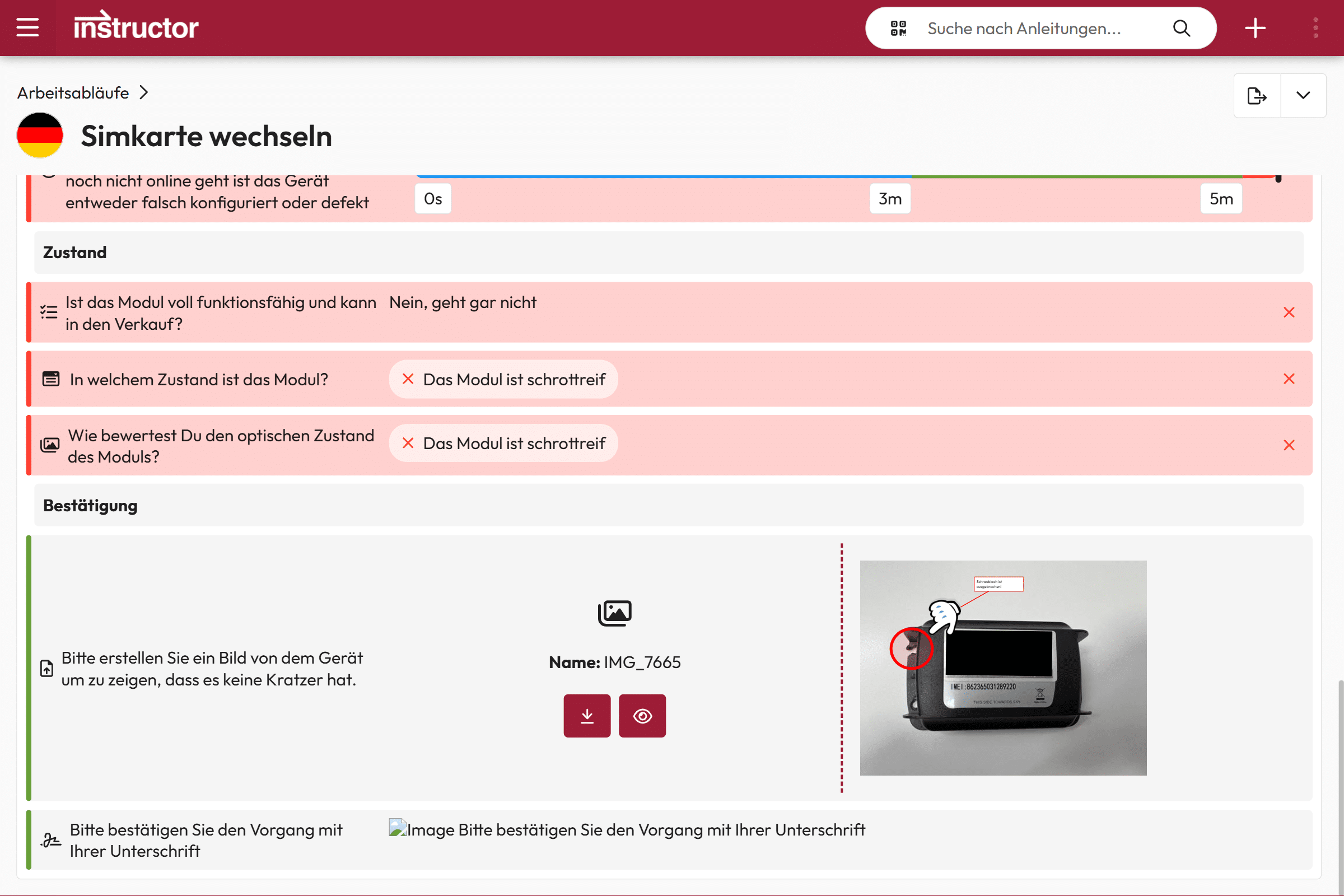
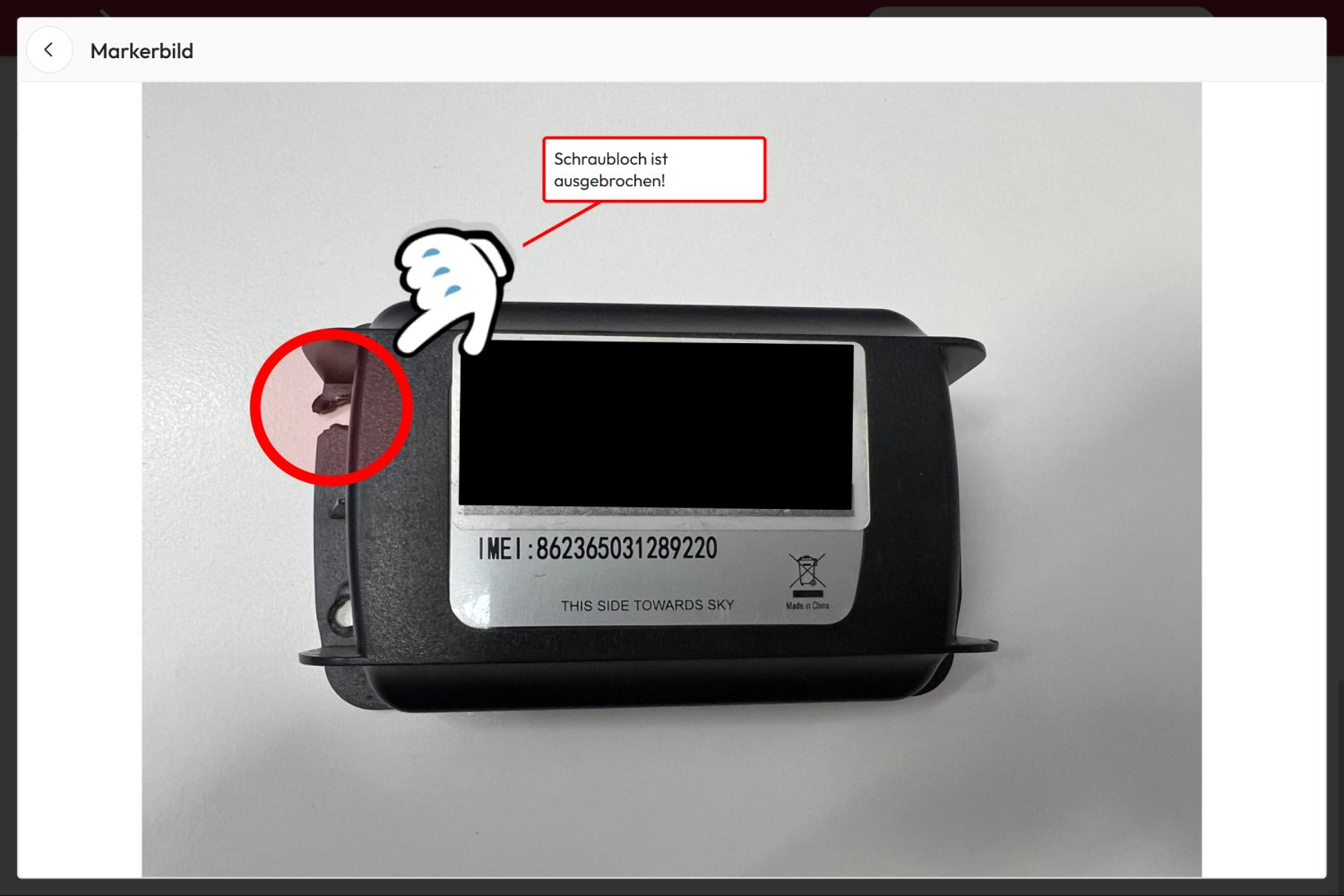
By integrating marker images into forms, facts can be presented clearly and comprehensibly using labeled images.
For example, defects, damage or accidents can be clearly documented in inspection instructions or tickets.”
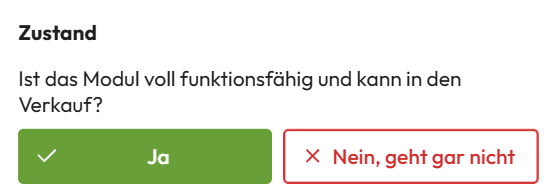
Test fields
Test fields are the easiest way to document the result of a test or inspection.
They indicate whether a test or examination was successful or whether there was an error and a repetition is necessary.
Selection fields
In the selection fields, you can specify whether an option describes a positive or negative result.
In this way, selection fields – similar to check fields – can be used to document test results or checks.
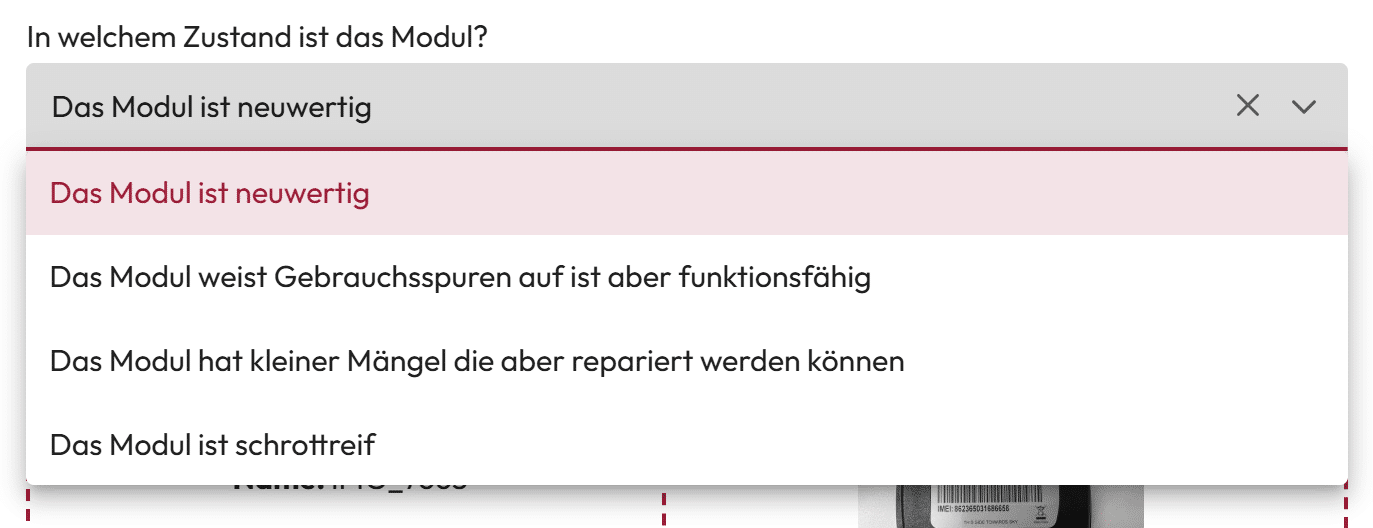
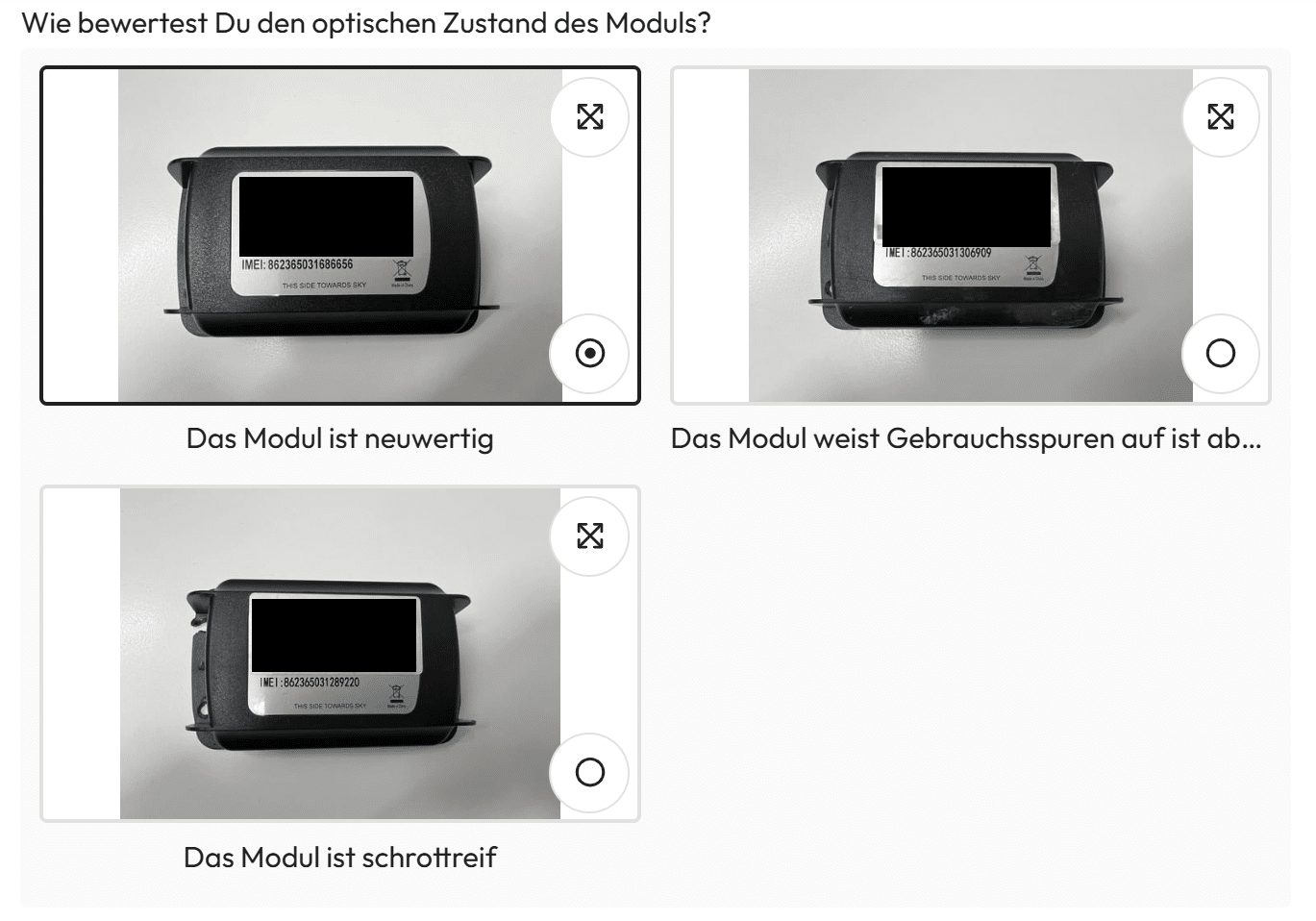
Image selection
If a result is difficult to put into words, a selection of images can be used instead.
The user selects the image that best corresponds to the respective situation.
Time recording
Time Recording Control makes it possible to precisely record, document and specify working times or process steps.
It helps to better understand processes and provides important data for process optimization.
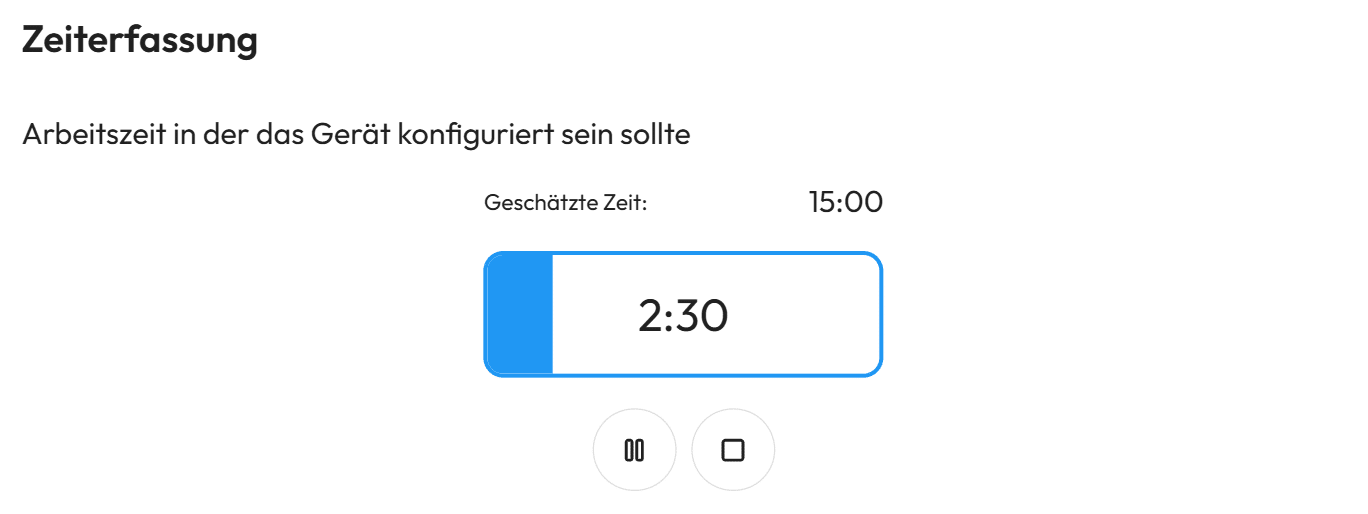
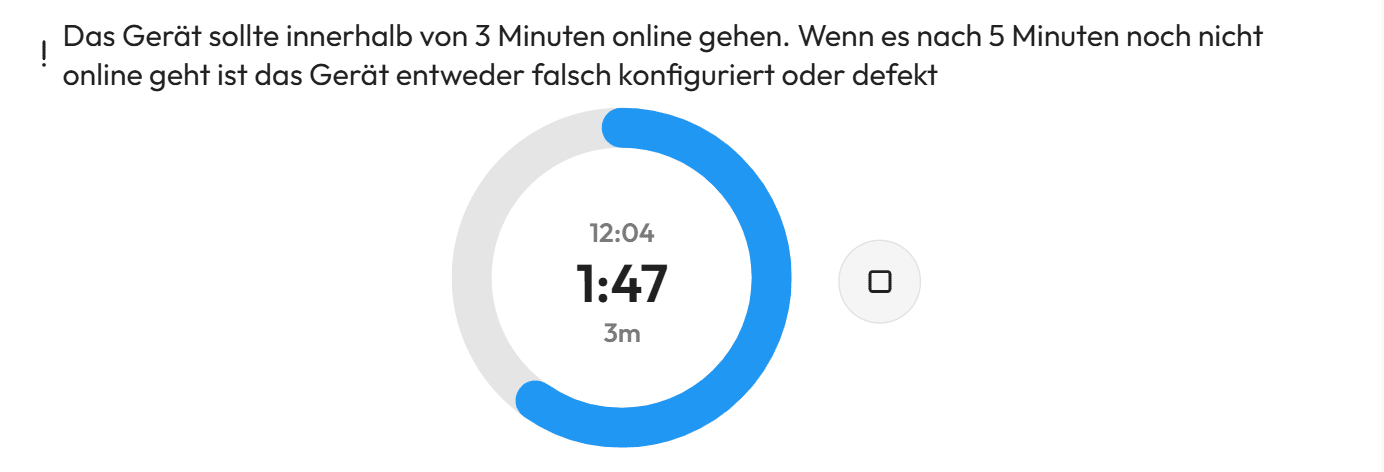
Countdown
The countdown control makes it easy to count down times in forms. It is particularly useful if certain waiting times need to be adhered to in instructions – e.g. for drying, loading or cooling.
The countdown starts automatically and clearly shows how much time is left.
Test report
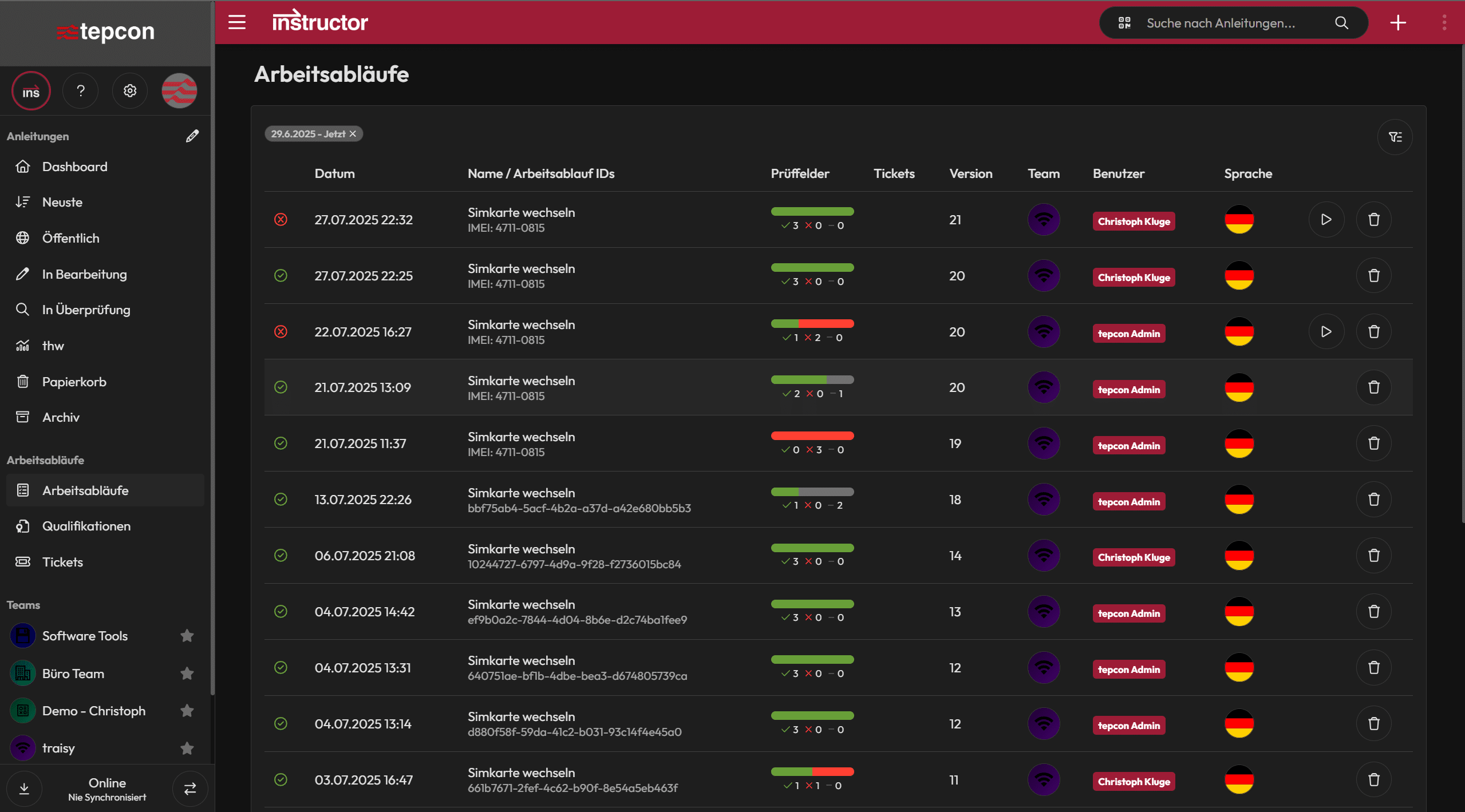
The test report clearly summarizes all test results and documents who tested what, with what result and when.
It shows which tests have been successfully completed and which have failed or need to be repeated.