Building blocks & variants
With building blocks, you can create recurring work steps once and reuse and link them flexibly in different instructions. Thanks to variant management, product variants with their specific work steps can be clearly mapped in a single set of instructions.
This saves you time, avoids duplicate content and improves clarity.


- Add blocks
- Modules in the step overview
- Update modules
- Add variants
- Manage variants
- Variants in the step overview
- Designation standardization
- Expert filter
Add blocks
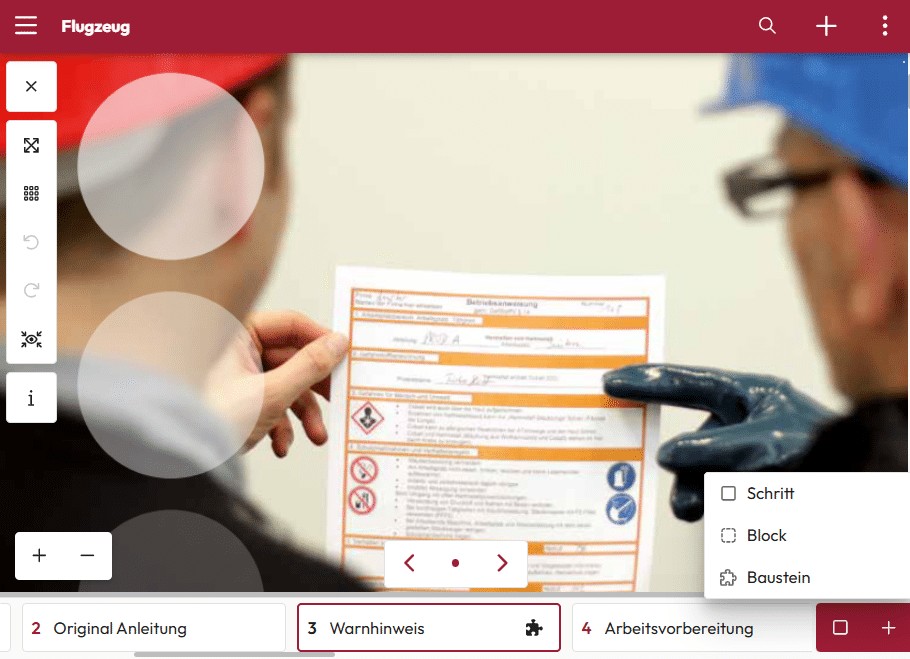
Building blocks are flexible, reusable content that can be seamlessly integrated into your instructions. This includes work steps, 3D content, forms or PDF documents that can be combined like pieces of a puzzle.
With just one click on the plus symbol, you can select the appropriate module from the list and insert it directly into your instructions. – Simple, efficient and clear!
Modules in the step overview
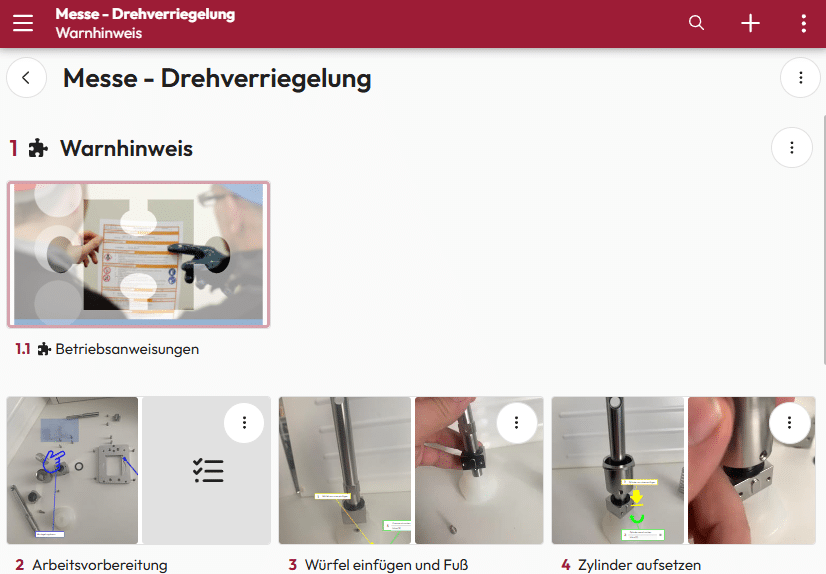
The building blocks are shown as puzzle pieces in the step overview.
This makes them easy to manage and clearly distinguish from the steps in the instructions. – As with a good jigsaw puzzle, only the interaction of all the pieces results in the big picture.
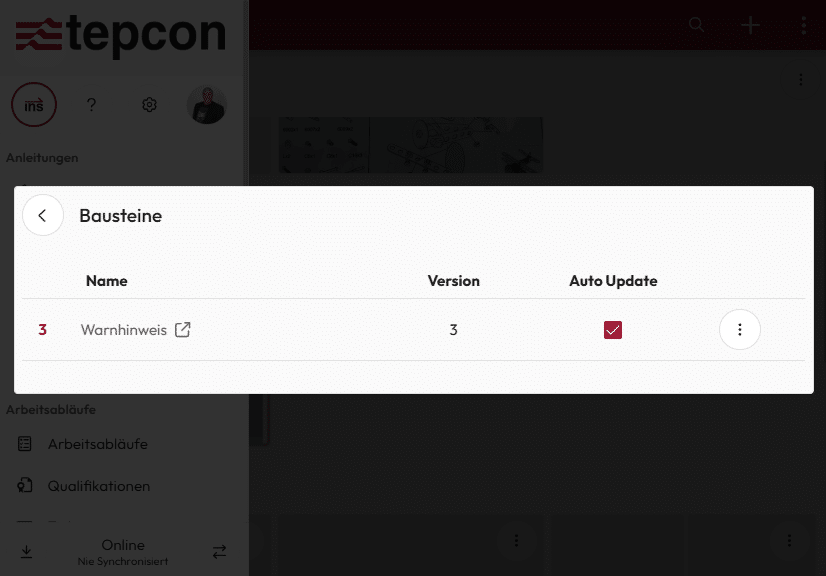
Update modules
When modules are updated, the authors have a choice: Should the change be automatically transferred to a new version of the instructions, or do they want to check it and transfer it manually to the instructions?
This function allows hundreds of instructions to be updated in a revision-proof manner in no time at all – saving valuable time and preventing duplicate data.
Add variants
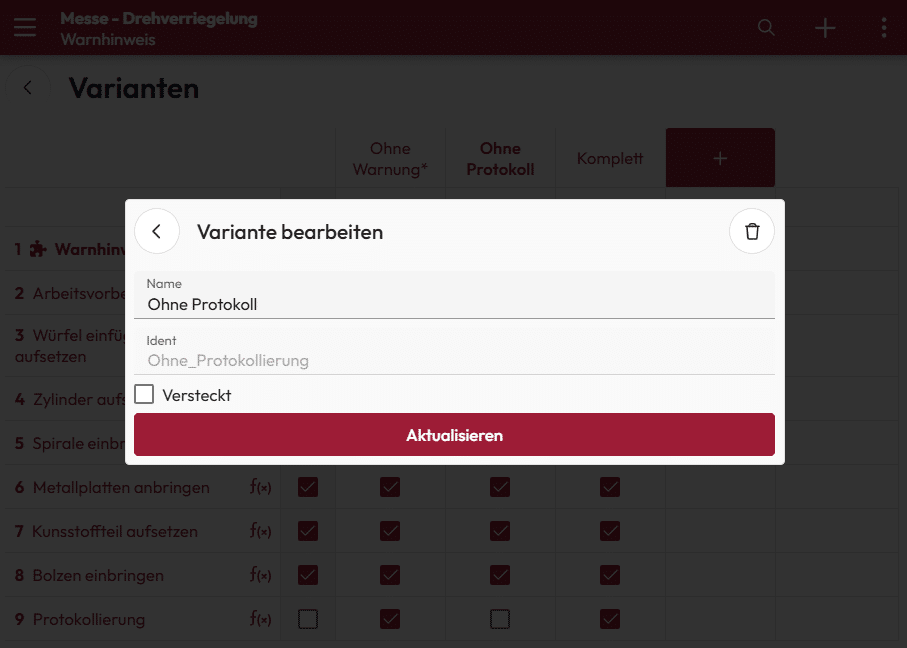
Thanks to variant management, employees no longer have to worry about which work steps are relevant for which product variant and what needs to be taken into account.
The system automatically displays only the required work steps and information – exactly matching the respective variant. – This reduces errors, minimizes stress and ensures a smooth workflow.
Manage variants
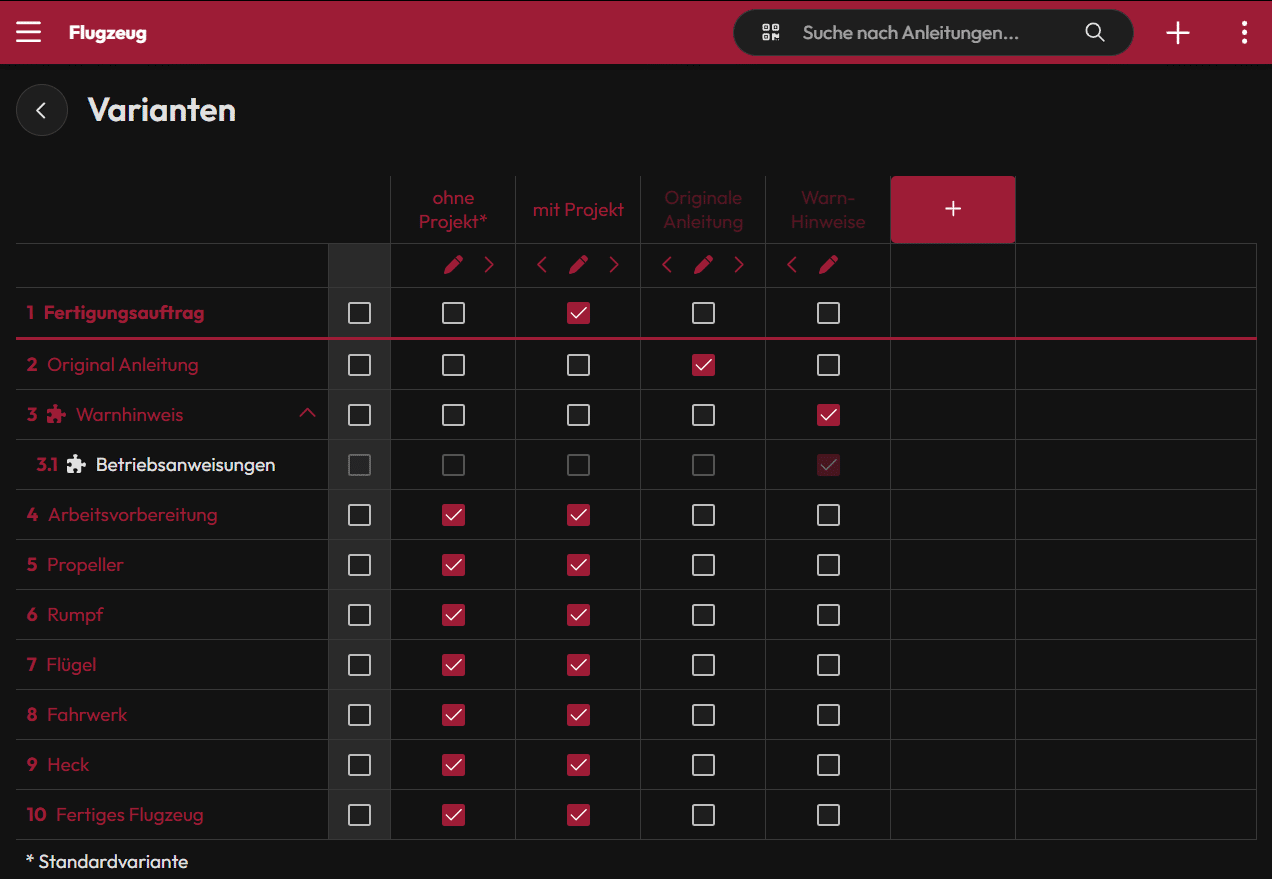
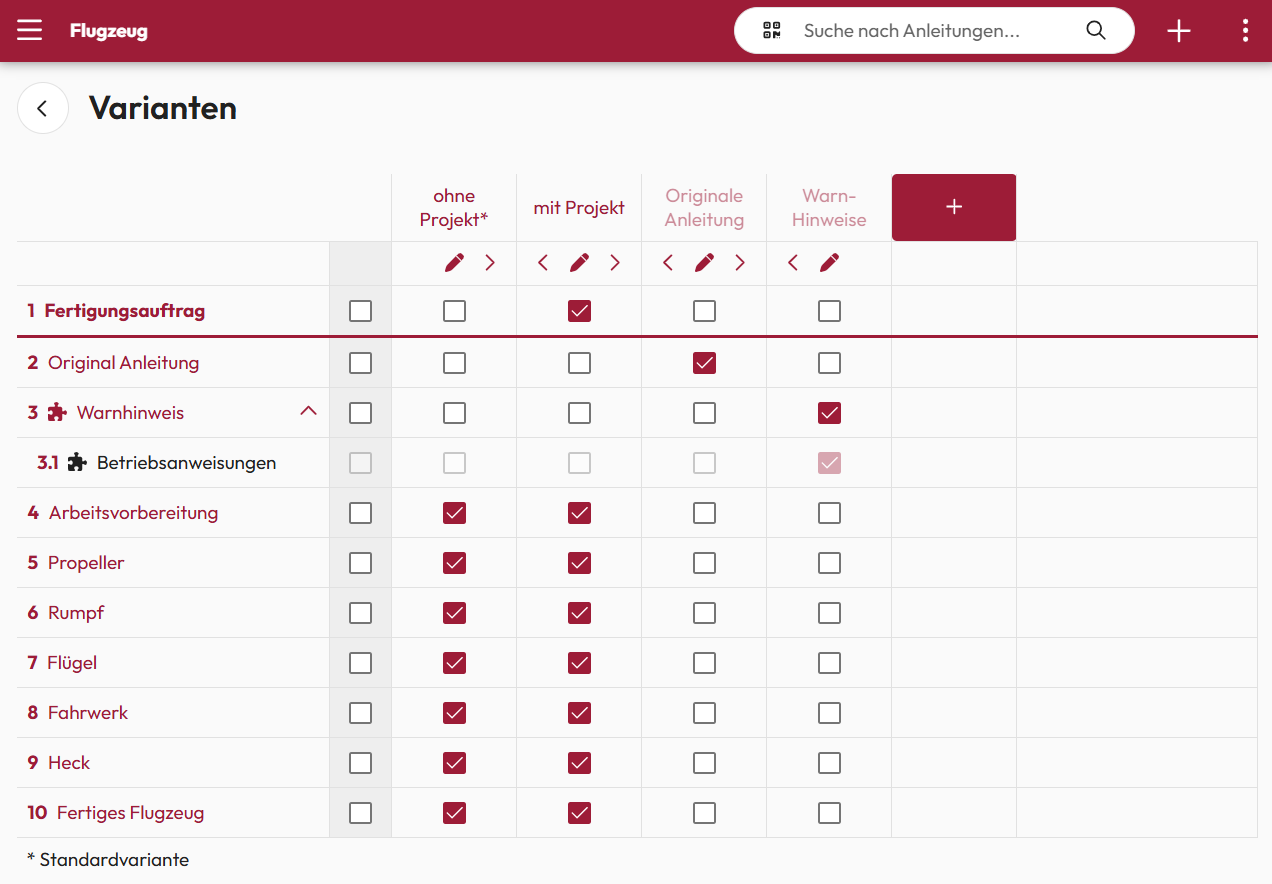
Product variants can be easily added as columns in a table using variant management. The relevant work steps can be added to or removed from the instructions with just one click.
This means no tedious creation of individual documents for each variant – and significantly reduced maintenance work.
Variant in step overview
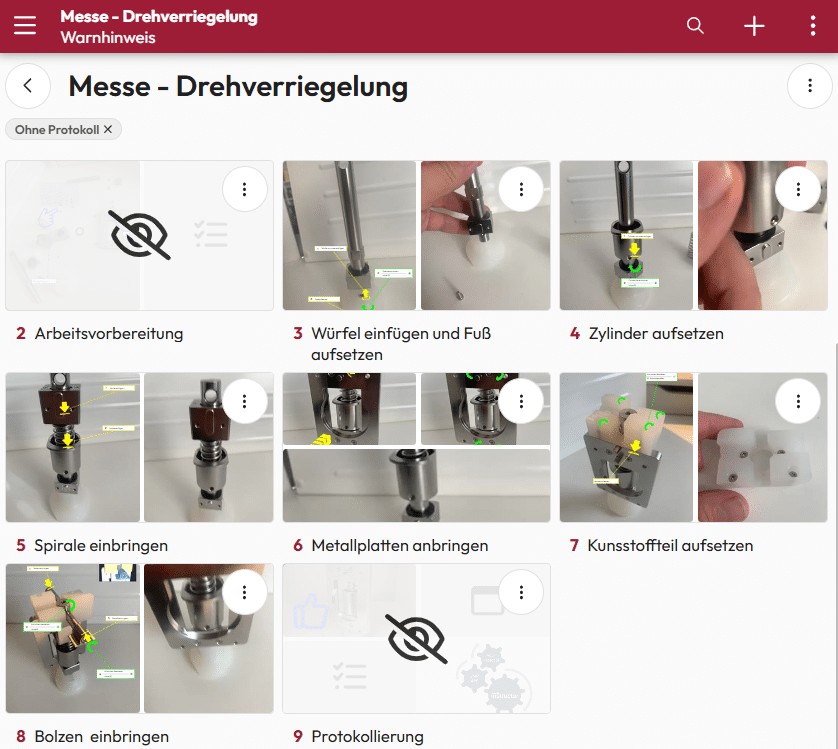
The variants are presented clearly and concisely in the step overview.
Content that is hidden for a specific variant is marked with a corresponding symbol. – This means you always have an overview and can see at a glance which elements are relevant.
Expert filter & label normalization
In combination with a designation standardization, the expert filter can be used to automatically compile work steps based on a product designation.
The leading system only transmits the product name. The instructor then automatically creates instructions with the specific work steps required for this variant.
The result is precise, flexible and efficient documentation – without any manual effort.
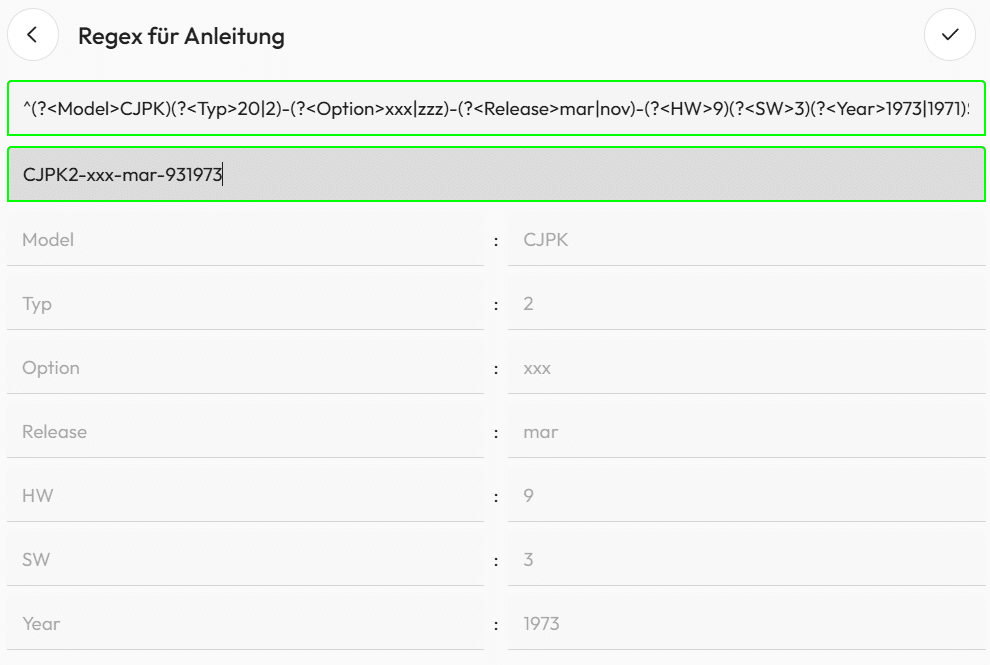
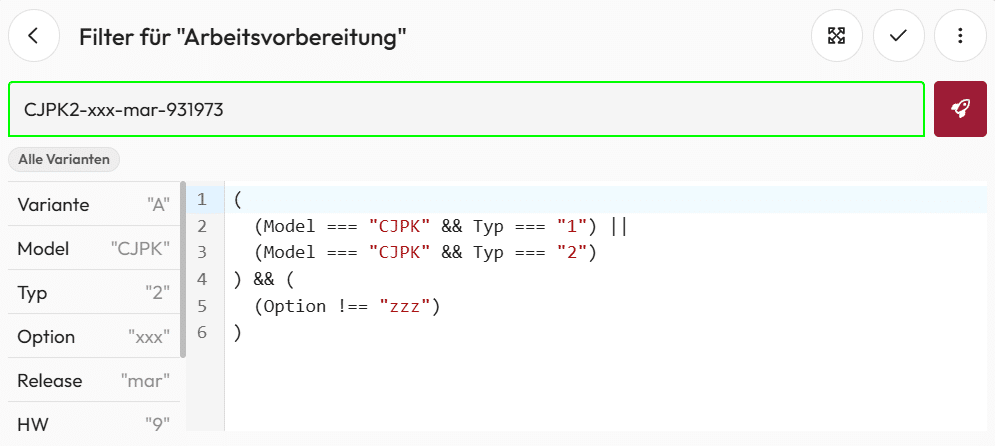
Expert filter: Filter work step
The product designation is broken down into its individual elements and properties to show or hide specific work steps.
These can be used in Boolean expressions to dynamically compile the content of work instructions depending on the product description. – In this way, the documentation always remains precise and focused on the essentials.
We are delighted with the trust placed in us by many satisfied customers!